Render from source
React, browser-renderable Next.js and Vue components. No separate stories or running application.
Render React, browser-renderable Next.js and Vue components from your project’s source. Get a screenshot for your agent or a live preview beside your code, using your styles and packages, without starting the app.
"use client";

import { Box, Grid, Typography }
  from "@mui/material";
import Image from "next/image";

export default function AIEcosystem() {
  const router = useRouter();

  const accordionData = [
    { title: "Instantly match students" },
    { title: "AI-powered interviews" },
  ];
Your project’s packages. The versions you already use.
 Vue 3
Vue 3 VS Code
Render the source with your project’s packages and styles. Inspect the screenshot, accessibility snapshot, warnings and errors before your next edit.
React, browser-renderable Next.js and Vue components. No separate stories or running application.
Your packages, styles, assets and reconstructable layouts. Missing context stays visible.
Find call sites and literal values. Preview up to 12 isolated variants per batch.
Capture a baseline. Inspect pixels, dimensions, accessibility and errors after an edit.
A cropped PNG, a readable accessibility snapshot, source fingerprint and explicit warnings.
A visual change is evidence for review. Arguseye reports incomplete inputs and context; it never declares a design automatically correct.
One command configures your MCP client and, where supported, installs its agent skill. Then ask your agent to look at the component it just changed.
Prefer the editor? Open a component in VS Code, choose Preview Component, and keep the preview beside your code.
Run from your project. Requires Node.js 22 or later.
npx @ayushniroula/arguseye install claudeAdds the project’s .mcp.json and a skill in ~/.claude/skills. Existing configuration is merged.
Pick your agent above, or install the VS Code extension. Both use the same engine.
npx @ayushniroula/arguseye install claudeRun from your project, then restart your agent. In VS Code, install the extension and open a component.
Ask your agent:
“Render src/Card.tsx and show me any warnings.”
Or run Preview Component in VS Code.
Keep the render’s captureId, edit the component, then ask for render_diff. In the extension, use Capture Baseline and Compare Changes.
The VS Code extension gives you a human view of the same engine. Open a component, keep editing, and inspect the result without switching to a browser.
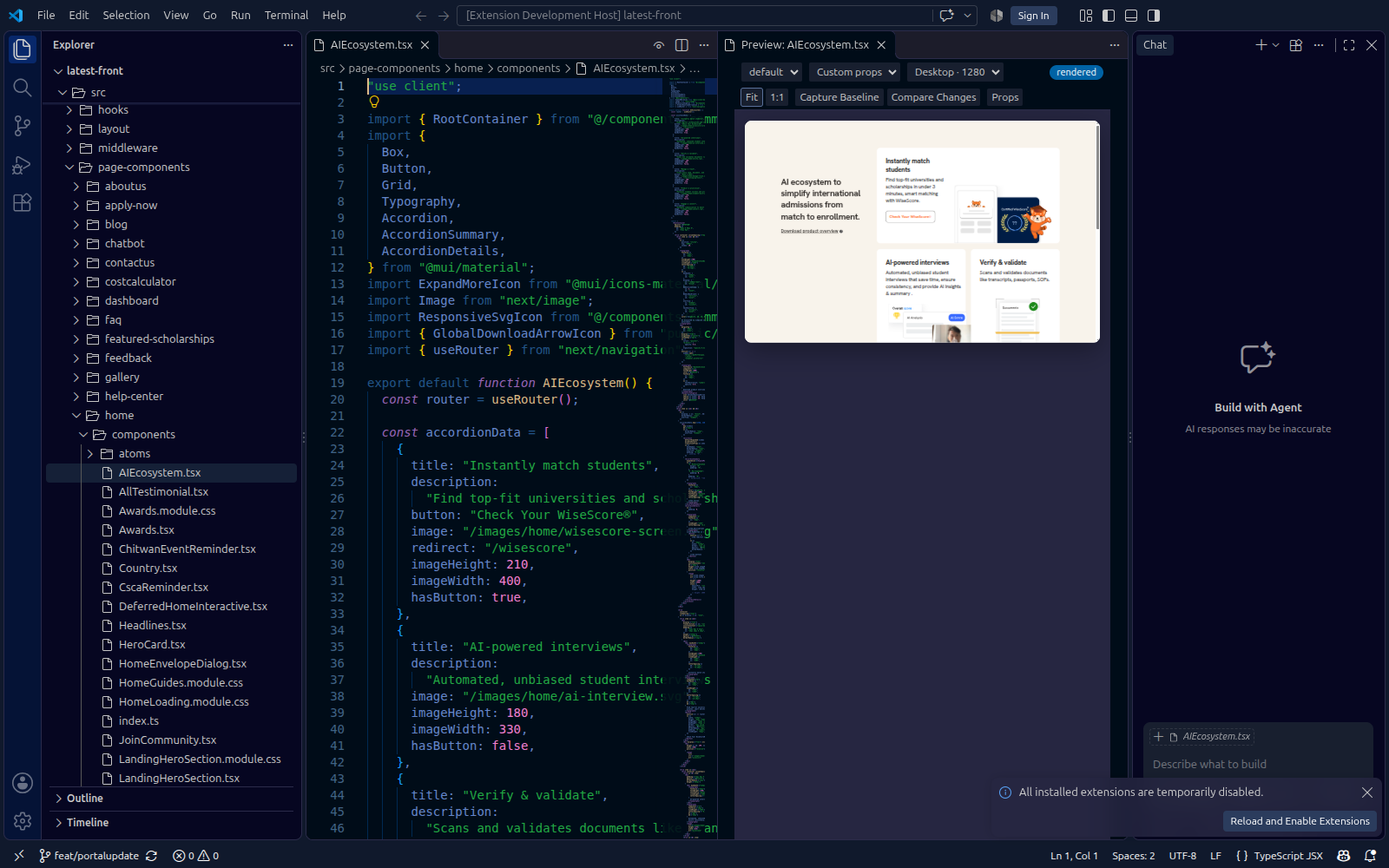
Actual extension screenshot. Source, component preview and verification controls in one workspace. Inspect the full-size screenshot ↗ · See six real component screenshots ↗
Unsaved buffers update the preview. React refresh and Vue template or style edits preserve state, so you can stay in the flow.
Choose an export, real usage or viewport. Adjust typed React props, scale the preview to fit, or inspect it at 1:1.
Capture a baseline, make an edit, then compare changes in the shared renderer. See warnings and incomplete context alongside the result.
Open a component and run Preview Component, or press Ctrl + Alt + P. Extension installation details ↗
Switch a variant or state and watch this example respond. It’s a hands-on illustration of what to inspect after an edit.
A little more breathing room. A clearer next step. One component, ready for a closer look.
A readable label carries the meaning, alongside color.
Ready<ReviewCard
variant="default"
status="ready"
/>Card · default appearance · ready state
This is an interactive HTML illustration. No screenshot, timing or error result is being generated by Arguseye here.
Try your actual component with Arguseye ↗The real engine runs locally against your project. Actual preview output is shown in the screenshots above.
One button breaks on a phone. See how Arguseye reads the project, renders the component and hands the agent the evidence to fix it, in under a minute.
Choose a component render, inspect its discovered usage inputs, or open the same source in the VS Code preview.
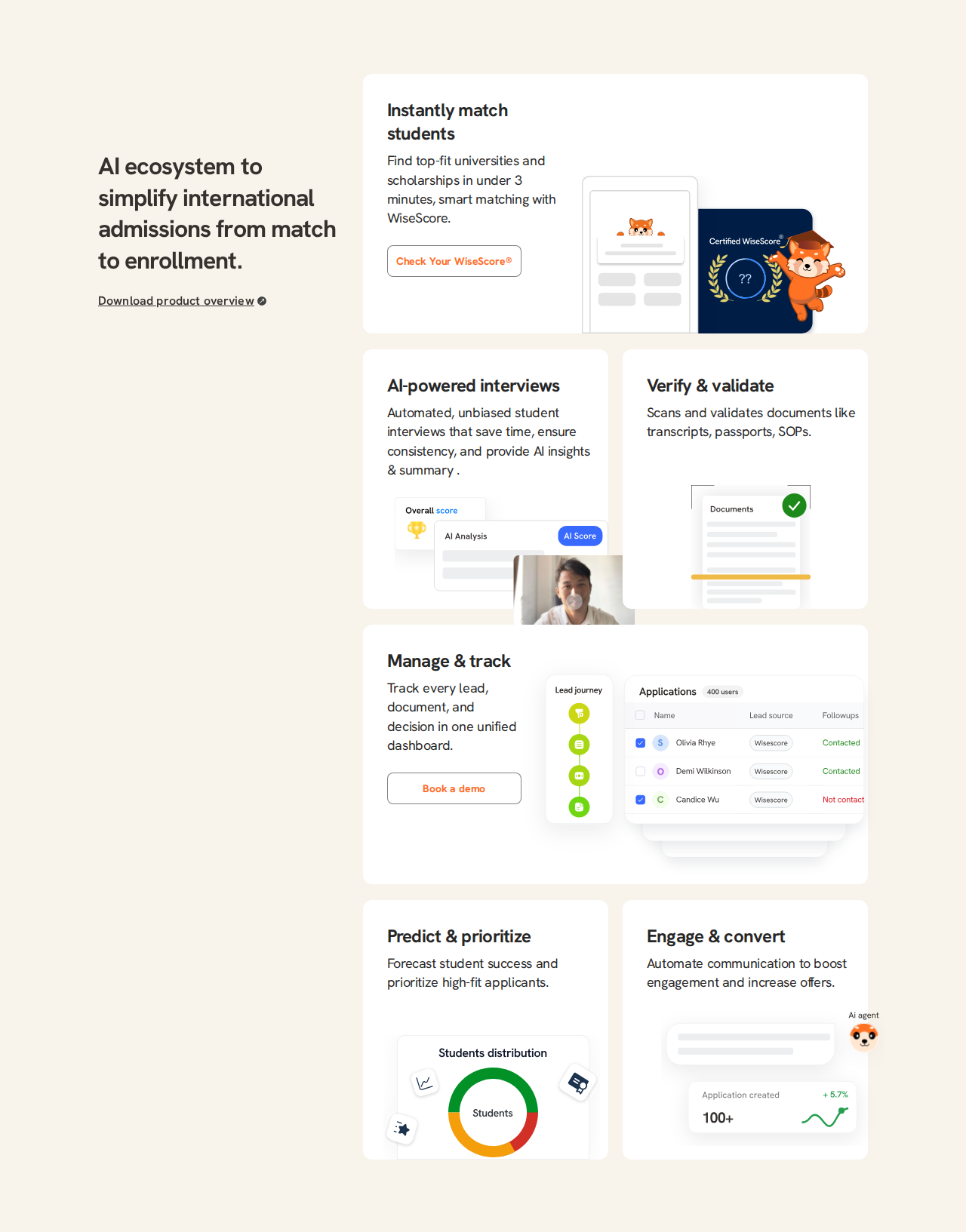
Actual component render · AIEcosystem.tsx1280 × 1633 · React / Next.js · project styles
list_usages {
  "file": "src/page-components/home/components/AIEcosystem.tsx"
}

call site    (main)/page.tsx
props        none — the component takes no props
ancestors    (main)/layout → template
in_context   renders inside those parent elements

render_usages { "file": "src/Card.tsx" }

Each isolated variant uses its call site’s literal props.
Runtime expressions remain explicitly unresolved.
Up to 12 variants per page.
Call-site discovery · illustrative response formatIsolated component coverage, not a full application test
Actual extension screenshot · Preview ComponentUnsaved edits · viewport presets · baseline comparisons

Unsaved buffers update the live preview. React refresh and Vue template/style edits preserve component state; Vue script changes reset state with a warning.
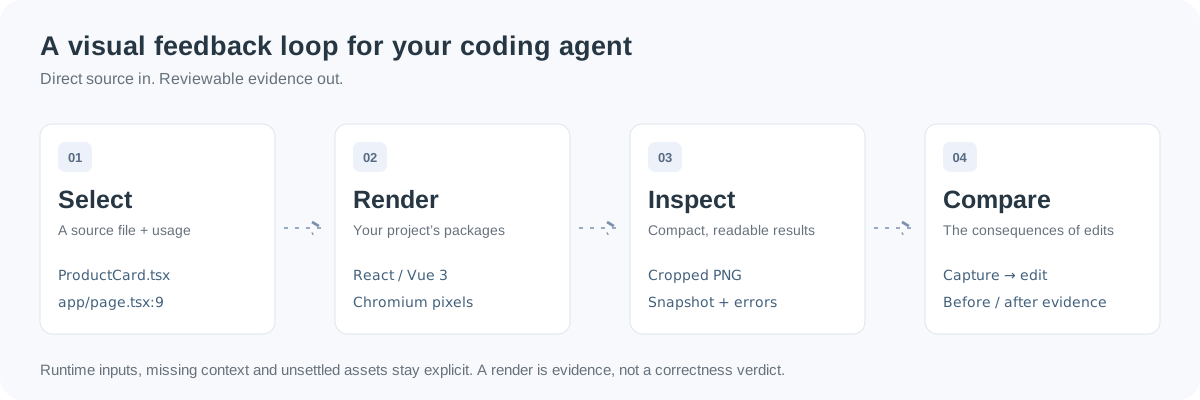
Discover real usage inputs, render the source, make an edit, then compare the result. Five MCP tools connect the steps; the CLI works without MCP.
Useful tools show their work. Performance depends on the project, the dependency graph and what’s already warm.
WiseAdmit’s Next.js project uses MUI, Emotion, Redux and next-auth. These are recorded project observations, not a promise for every component.
Render with your own packages, global styles and statically reconstructable layouts. If props need runtime data or a provider cannot be reconstructed, the result reports it.
Use application-level browser tests for authentication, backend state and complete user journeys. Component evidence helps you inspect the UI along the way.
Read the compatibility boundaries ↗The warm workflow captures a card, edits its button label, and inspects the result. Both approaches verified the expected output.
Recorded 27 Oct 2026 · small React fixture · Intel Core i5-1235U · Node v24.21.0. Arguseye returned a larger evidence bundle and had a slower cold total in this run. These results do not establish a general performance ranking.
Read the method, cold results and response sizes ↗No. Arguseye renders component source directly, using packages installed in your project. You still need the project’s dependencies and Node.js 22 or later. Chromium is required for headless rendering; setup details are in the installation guide.
React components, browser-renderable Next.js components, and Vue 3 single-file components. Project CSS, Tailwind, Sass, CSS modules and assets are supported. Next.js server execution, Nuxt application context and arbitrary runtime providers are outside the current release.
A cropped PNG, accessibility snapshot, resolved and unresolved inputs, source fingerprint, timings, warnings and errors. Choose image, summary or both. Successful renders receive a capture ID for later comparison. The CLI is available when your agent has no MCP support.
No. Arguseye shows pixels and structured evidence, including what changed and any incomplete context. Review the result against the intended behavior and use integration tests for complete application flows.
Yes. Install the VS Code extension, open a component and run Preview Component. Choose an export, usage or viewport; capture a baseline and compare unsaved edits. The same engine powers the CLI and MCP tools.
Choose your agent, install Arguseye, then ask it to render a component. Capture a baseline, edit the source and compare the result.
Explore the package on npm ↗